

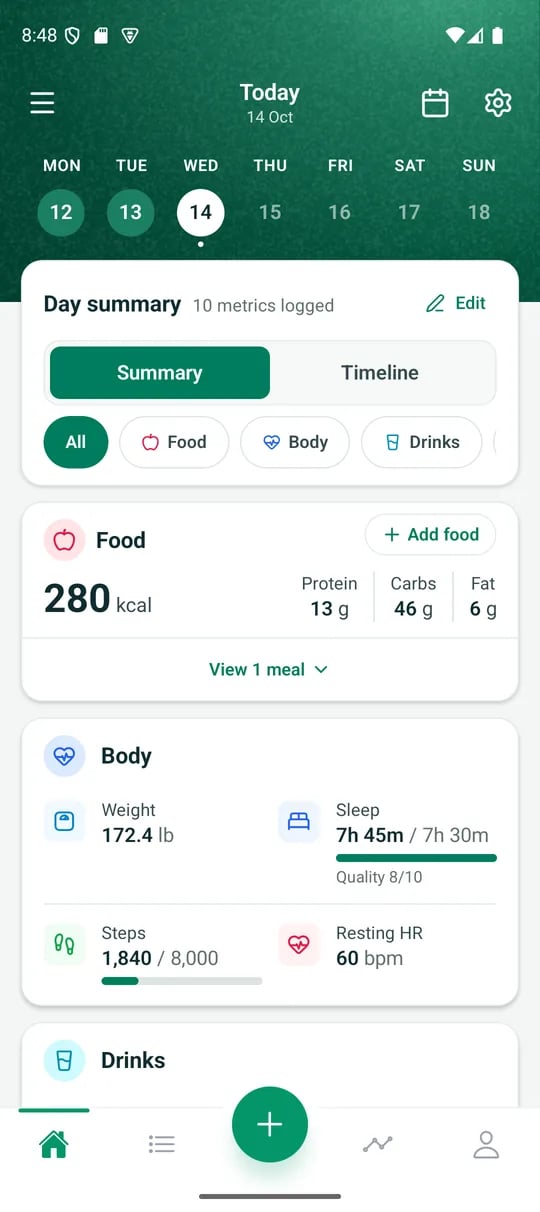
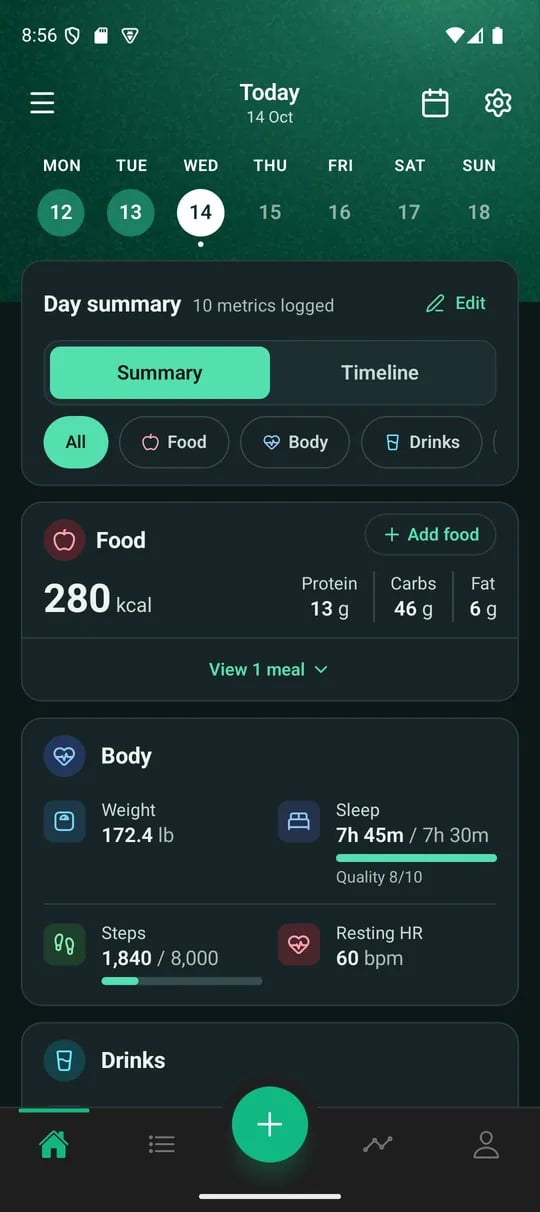
Home on a logged day
The top of Home
The title names the day you are viewing. For today it reads Today over the date. For any other day it shows that day’s date, and tapping the title takes you back to today. The menu button on the left opens the menu. The calendar icon on the right opens the full month. Tap it again to close the month. The plus button floats above the tab bar. It opens quick-add. See Logging.The week and the month
Under the title is the current week, Monday to Sunday. Tap a day to see it. Each day tells you what it holds:
The month uses the same looks. In the month, use the arrows to move between months. You cannot select a future day. You can edit any past day.
Day summary
The Day summary card shows how many metrics you logged on the selected day. Edit opens Log on that day. Two buttons switch between Summary and Timeline. Summary comes first, and your choice stays when you change day.Summary
Summary groups the day’s values into cards:- Food and Workouts lead. Each has an Add food or Add workout button. It opens the same screen as Log, on the selected day.
- Body holds sleep, steps, weight, resting heart rate and calories burned.
- Drinks holds water, caffeine and alcohol.
- Mind & focus holds mood, energy, stress, meditation, deep work, screen time and journal.
- Money holds spending and net worth.
- Habits and Your metrics hold your habits and your custom metrics.
Timeline
Timeline lists the day’s timed entries under Night (before 05:00), Morning (to 12:00), Afternoon (to 17:00) and Evening. Only the parts of the day with entries appear. If you have both bed and wake times, sleep sits first under Overnight. Entries logged without a time sit under No time recorded. Tap an entry to edit it.Your goals
Your goals shows progress towards each goal on the selected day. A daily goal whose metric you logged that day appears inside that value instead, as a bar under the number. Weekly goals, goals with nothing logged and goals for a metric you have switched off stay in Your goals. See Goals. With a chip chosen, Your goals lists only the goals for that card.At a glance
At a glance holds quick stats. The averages cover the seven days ending on the day you are viewing, and the card names those dates. The streak names its day too. On a past day it reads, for example, Logging streak on 9 Oct. Each tile is a button. The streak opens the month at the top of Home. Any other tile opens Insights at that metric’s trend. The trend covers the last 14 days up to today, whichever day you are viewing. A metric with no trend chart opens Insights at the top.From your Insights
Below the cards, Home shows one connection from the 60 days ending on the day you are viewing. View comparison opens that pair in Insights. It skips anything you hid or marked Not useful. When no connection qualifies yet, Home says so. See Insights.What an empty tile means
A dash on a tile means that metric has nothing logged, or you switched it off. It is not a zero. A goal with no value reads Not logged. A zero you logged shows as a zero. A day in the week with a dashed outline has nothing logged. Open it and add something, or leave it blank.Customise Home
Open the menu, then Settings, then Customise dashboard.- Cards. Show or hide Goals and At a glance, and move them up or down.
- Stat tiles. Choose which tiles At a glance shows and put them in the order you want. The choices are streak, mood, energy, stress, sleep, steps, water, meditation, deep work, spending and weight. The streak counts days, spending is a seven-day total, weight is your latest value, and the rest are averages.
- Reset to default. This restores the standard layout.